
The Site Health & Code Compliance Audit

Most websites are technically "broken" in ways that make them invisible to AI and search engines. This 10-point audit helps you identify the code and performance gaps that are holding your brand back from ranking on page one.

Website Check # 1

Schema Markup (The AI "ID Card")

Go to your homepage and a service page. Right click > View Page Source and search for "@type". You want to see "Organization" on the home page and "Service" on your service pages.

  • Webflow: Best-in-class. Use the "Custom Code" section in Page Settings to paste (or generate) JSON-LD.
  • WordPress: Install the RankMath or Yoast plugin; they handle this automatically.
  • Shopify: Most themes have a basic Product schema, but you may need an app like SEO Ant for an advanced "Organization" schema.
  • Wix/Squarespace: Look for the "SEO" tab in settings; they have built-in fields for "Business Type" that generate this.

Website Check # 2

Page Speed (The "Bounce" Factor)

Run the URL through Google PageSpeed Insights. Look for a score above 80. If your "LCP" (Largest Contentful Paint) is over 2.5 seconds, users are leaving before the page even loads.

  • Webflow/Shopify: Usually fast, but check image sizes. Use .webp format.
  • WordPress: Requires a caching plugin like WP Rocket or W3 Total Cache.
  • Wix/Squarespace: Limited control here; focus on reducing heavy video backgrounds.

Website Check # 3

Header Hierarchy (The "Outline")

One H1 per page. Use H2s for main sections. This tells AI what the page is actually about.

Don't choose "H1" because you like the size; choose it because it's the main topic.

Website Check # 4

Mobile "Thumb-Friendliness"

Are buttons at least 44x44 pixels? Is there enough space between links?

  • Webflow: Use the "Mobile" breakpoints to manually adjust padding.
  • Squarespace/Wix: Use the "Mobile Editor" view to ensure text isn't overlapping.

Website Check # 5

Image Alt Text

Right-click an image > Inspect. Is there an alt="Description" tag?

  • Shopify/WordPress: You can bulk-edit Alt Text in the Media Library.
  • Webflow: Click the image settings (gear icon) to add Alt Text. Essential for AEO.
Website Check # 6

SSL & HTTPS Security

Does your URL have the padlock icon?

Ensure "Always use HTTPS" is toggled ON in hosting settings.

Website Check # 7

Favicon & Brand Assets

Is the "little globe" icon still showing in the browser tab instead of your logo?

This is often forgotten in Webflow and Squarespace (Go to Settings > General).

Website Check # 8

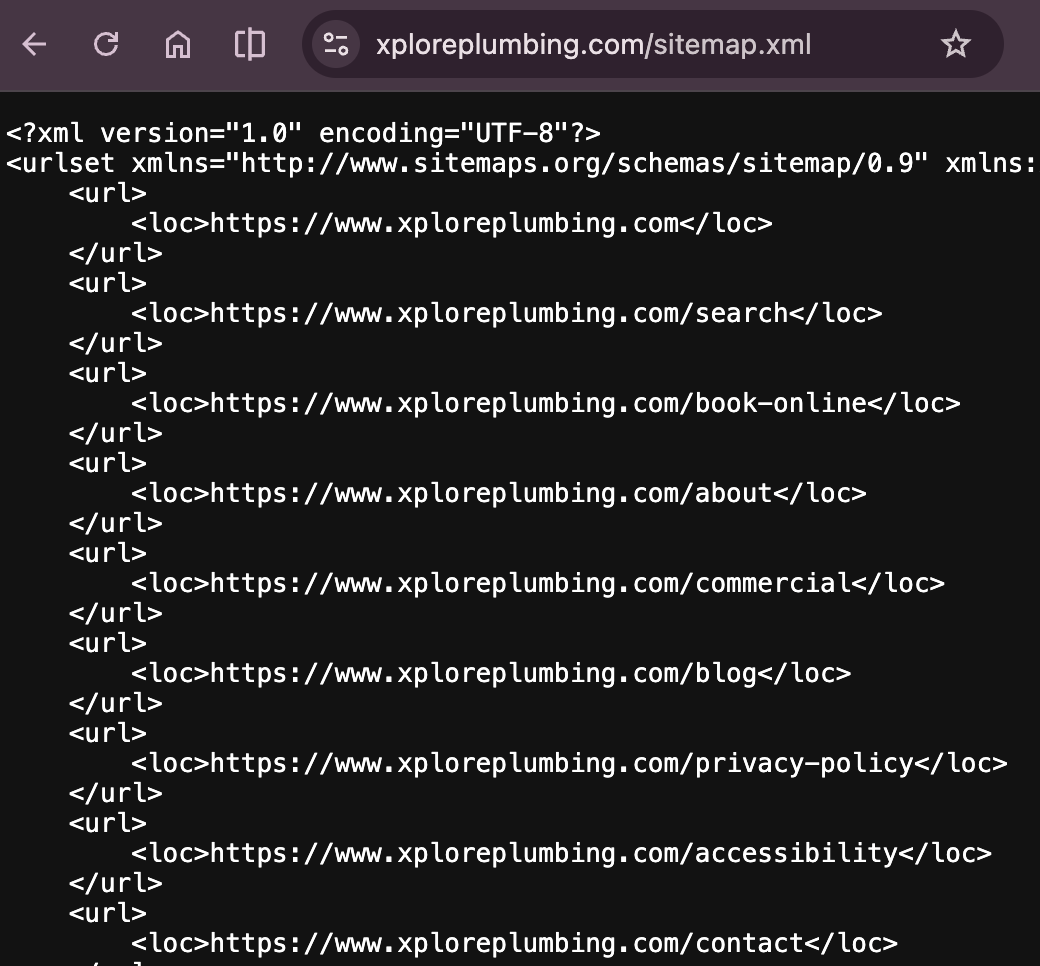
Sitemap.xml Presence

Go to yourwebsite.com/sitemap.xml. Does a list of links appear?

Webflow and Shopify generate this automatically. WordPress needs a plugin.

Website Check # 9

Robots.txt Configuration

Go to yourwebsite.com/robots.txt. Ensure it’s not "Disallowing" your main pages.

A common issue in Webflow is forgetting to turn off "Disable indexing" after a site launch.

Website Check # 10

Accessibility (Contrast & ARIA)

Do you have light-colored text on a white background? AI and visually impaired users hate this. If a robot can't "read" the contrast, it won't trust the content.

Use the Webflow Accessibility Audit tool, the Contrast app (Mac/PC), or a tool like Adobe Color Contrast to ensure your brand colors are "AAA compliant."

What's Your Score?

1-3 (Critical), 4-7 (Needs Work), 8-10 (AI-Ready).

If you scored below a 7, your code is likely hiding your site from people trying to find you.

Mini Glossary

AEO (Answer Engine Optimization): Optimizing your site so AI (like ChatGPT or Gemini) can find and cite your business as an answer.

LCP (Largest Contentful Paint): How long it takes for the biggest piece of content on your screen to show up.

Schema: Hidden code that tells search engines exactly what your data means (e.g., "This number is a price," not just a number).